Your paperwork, in one private place.
Scan a bill, a lease, an invoice or a bank statement. Paperweight finds the dates that matter on your iPhone and reminds you before they pass. Nothing leaves your phone.
For iPhone and iPad with iOS 26 or later. No account, no cloud, no ads.
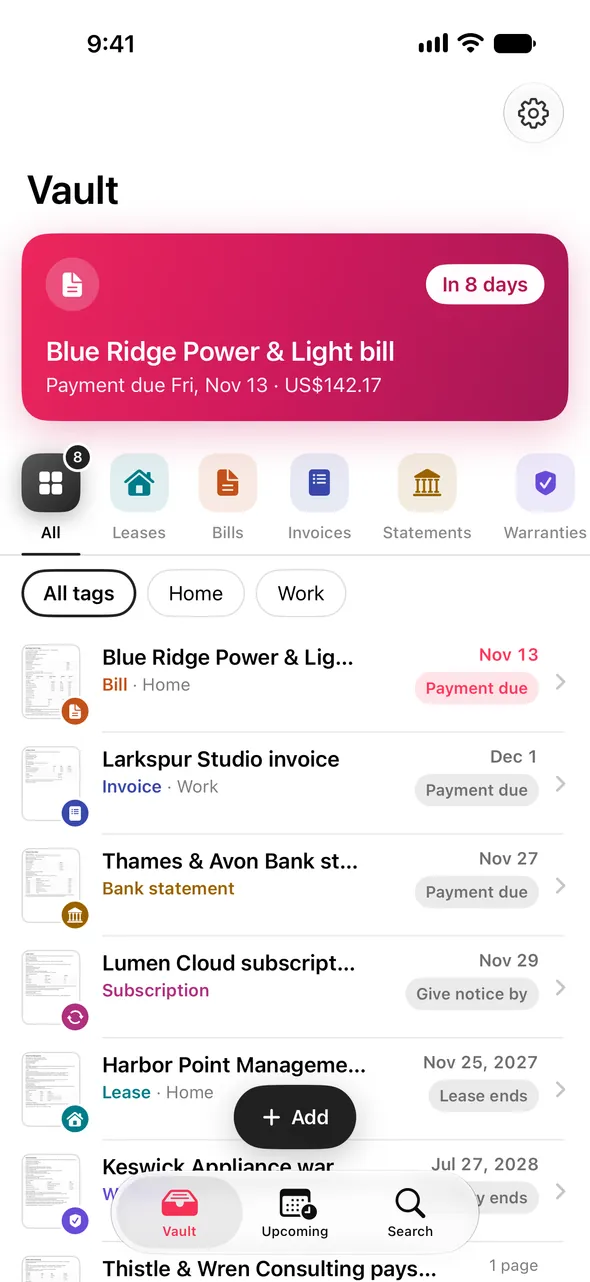
Reads
Bills Invoices Bank statements Leases Warranties Payslips Insurance SubscriptionsScan it once. Never chase a date again.
Paperweight reads every page with Apple's on-device text recognition, then works out what each date and amount means — with Apple Intelligence where your iPhone has it, and built-in rules everywhere.
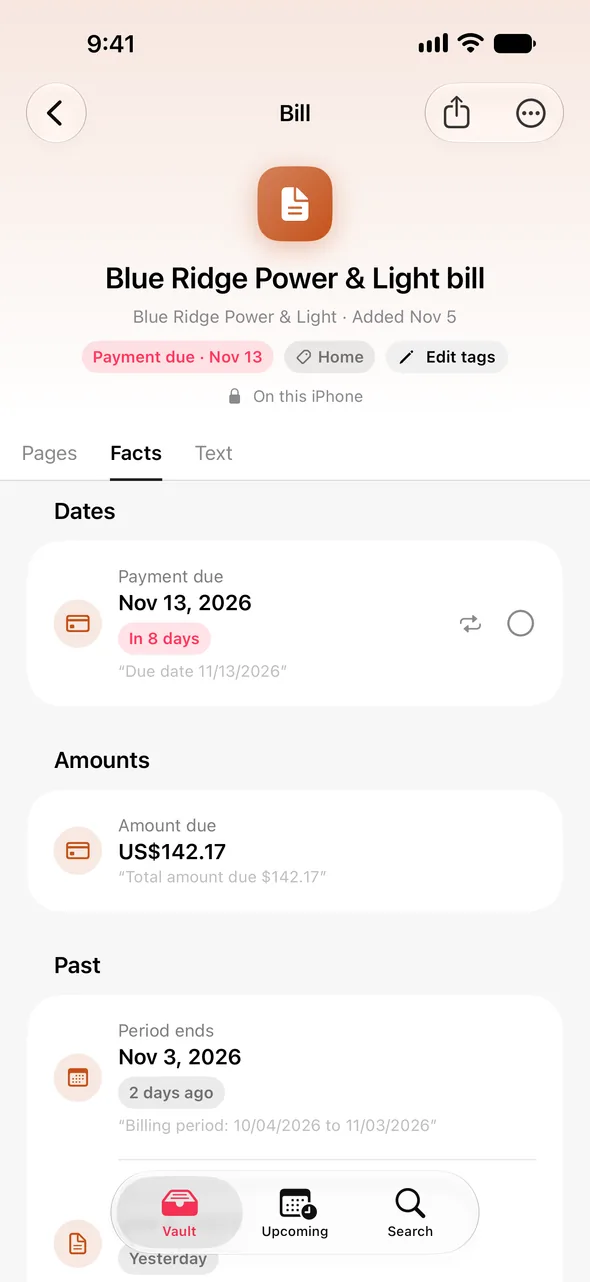
The dates are found for you
A bill's due date and amount, a lease's end and the day your deposit comes back, a warranty's last day, a card statement's minimum payment. You check what Paperweight found, change anything, and save.
- Invoices with only "net 30" still get a due date
- Balances and tax are read from their own line, never guessed
- Dates written 04.11.2026 or 11/04/2026 are read the way the document means
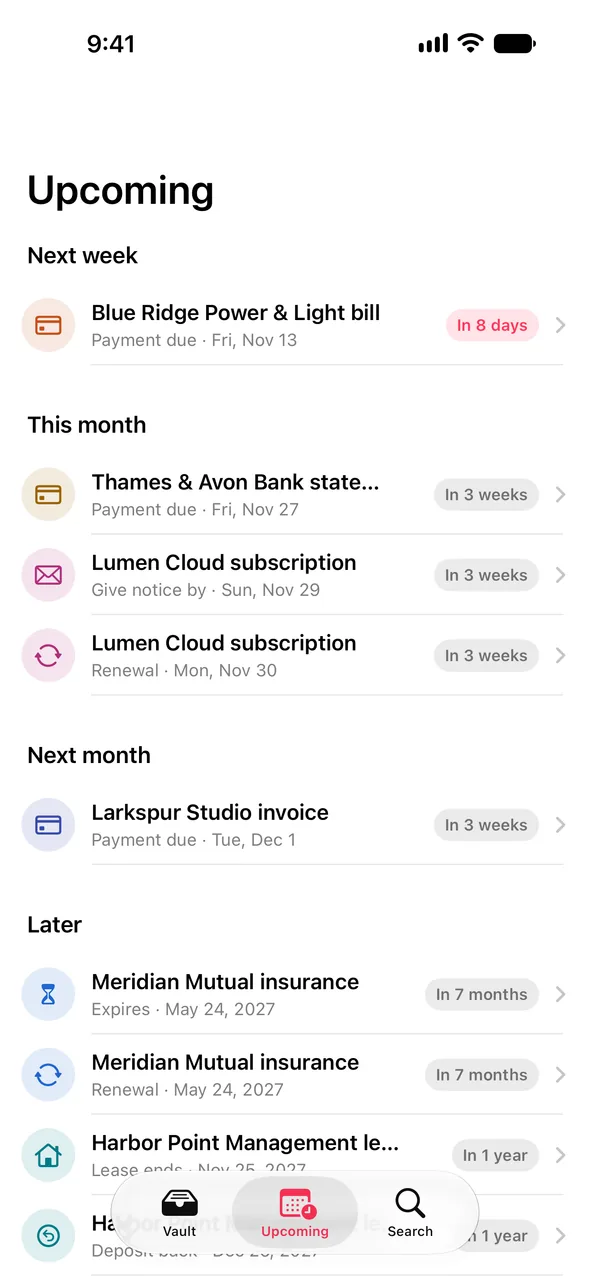
Reminded before it is too late
Every confirmed deadline lands on one timeline — this week, next month, next year — and on your lock screen when it matters. Choose how far ahead each document warns you, and let monthly or yearly dates roll forward on their own when you mark them handled.
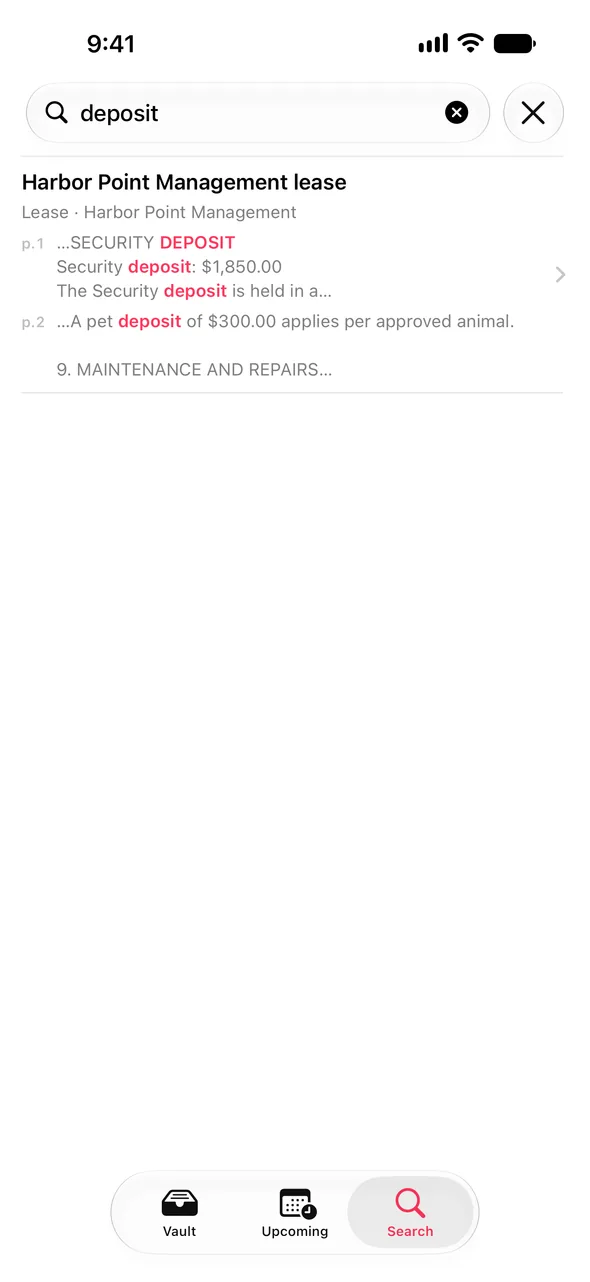
Find anything, in any document
Search the text of every page, not just titles. Tag what belongs together, share any document as a PDF, and keep an encrypted backup file that only your passphrase opens.
Nothing leaves your phone.
These are the documents you would never upload to a cloud AI. So Paperweight has no server to upload them to.
No account, no server, no analytics
The app contains no networking code. A test fails the build if any is ever added.
Locked and encrypted
iOS Data Protection keeps the vault unreadable while your iPhone is locked, and Face ID guards the app itself.
Intelligence on the device
Reading and understanding happen on your iPhone — never on a remote model, and never on Private Cloud Compute.
Privacy policy
Last updated 5 November 2026 · Paperweight for iPhone and iPad
Paperweight collects nothing. Your documents, and everything the app reads from them, stay on your device.
What we collect
Nothing. Paperweight has no account, no sign-in, no server, no analytics, no advertising, no crash-reporting service and no third-party code. The app makes no network requests of its own. Its App Store privacy label reads "Data Not Collected" because there is nothing to collect.
What stays on your device
- The pages you scan or import, and the files you share into the app
- The text Paperweight recognises on those pages, and the search index built from it
- The dates, amounts, titles and tags it finds or you enter
- Your settings, such as reminder times and the app lock
- A short local diagnostics log of error codes and counts — never document text, titles, amounts or file names
This data is stored inside the app with iOS Data Protection's highest class, so it cannot be read while your device is locked. Deleting the app deletes all of it.
Backups
By default the vault is left out of iCloud and computer backups. You can include it in Settings › Privacy. "Back up to a file" creates an encrypted file protected by a passphrase you choose; Paperweight cannot open it without that passphrase, and where you keep the file is up to you.
Reading your documents
Text recognition uses Apple's Vision framework on your device. Working out what dates and amounts mean uses Apple's on-device Foundation Models on devices with Apple Intelligence, and built-in rules elsewhere. Paperweight never sends a document to a remote model, including Apple's Private Cloud Compute.
What leaves only when you choose
Nothing leaves on its own. When you share a document as a PDF, export a backup file, or share diagnostics, the system share sheet sends it wherever you pick — and only there.
Permissions
- Camera — to scan paperwork. Images go straight into the vault.
- Face ID — to unlock the app. Apple handles the face data; Paperweight only learns whether it matched.
- Notifications — to remind you of deadlines. They are scheduled locally on your device.
- Choosing photos and files uses Apple's pickers, so Paperweight never sees the rest of your library.
Children
Paperweight is not directed at children and collects no information from anyone.
Changes
If this policy changes, the new version will be published on this page with a new date. A change that would ever send data off your device would also be announced in the app before it took effect.
Contact
Questions about this policy: neiellcare.paradiang@gmail.com.
Support
Answers to common questions. Anything else, write to the address below.
Which paperwork does Paperweight understand?
Bills, invoices, bank and credit card statements, leases, warranties, payslips, insurance policies and subscription notices — in English, with dates in US, UK and European formats. Anything else is stored and searchable as a document, and you can add its dates yourself.
Do I need Apple Intelligence?
No. On devices with Apple Intelligence, Paperweight uses it to understand each document better. Everywhere else, built-in rules read the same documents. Both run entirely on your device.
How do I move my vault to a new iPhone?
In Settings › Storage, choose "Back up to a file", pick a passphrase, and save the file somewhere you can reach from the new iPhone. There, open the file with Paperweight and enter the passphrase. Alternatively, turn on "Include vault in device backups" before you back up and restore the old iPhone.
I forgot my backup passphrase.
The backup cannot be opened without it — that is what keeps it private. Your vault on the device is not affected; make a new backup with a new passphrase.
Why didn't a reminder arrive?
Reminders are only scheduled for dates you have confirmed, and only if notifications are allowed for Paperweight in the Settings app. Check that the document's "Remind me" switch is on in its Facts tab.
Can I turn off Face ID?
Yes, in Settings › App Lock. Your documents stay encrypted by iOS either way; the lock only decides whether the app asks before showing them.